Titanium.UI.iOS.SystemButton
A set of constants for creating standard iOS system buttons.
Most of these constants are used with the Button.systemButton property to define a standard iOS system buttons for use in navigation bars and toolbars.
See Titanium.UI.Button for more information on the systemButton property, including details on where system buttons can be used. In an Alloy application you can omit the Ti.UI.iOS.SystemButton namespace when assigning a value to the <Button> element's systemButton attribute, for example:
<Button systemButton="CAMERA"/>
<!-- Instead of -->
<Button systemButton="Titanium.UI.iOS.SystemButton.CAMERA"/>
A few of these constants are used with Button.style to create standard iOS buttons that can be used in other places, including table view rows. Note: Starting at Titanium SDK 5.0, all icons have are automatically sized in the native behavior and are not distorted any more. These standard button types are:
See Apple's iOS Human Interface Guidelines in the iOS Developer Library for details on the proper usage of iOS standard buttons and icons.
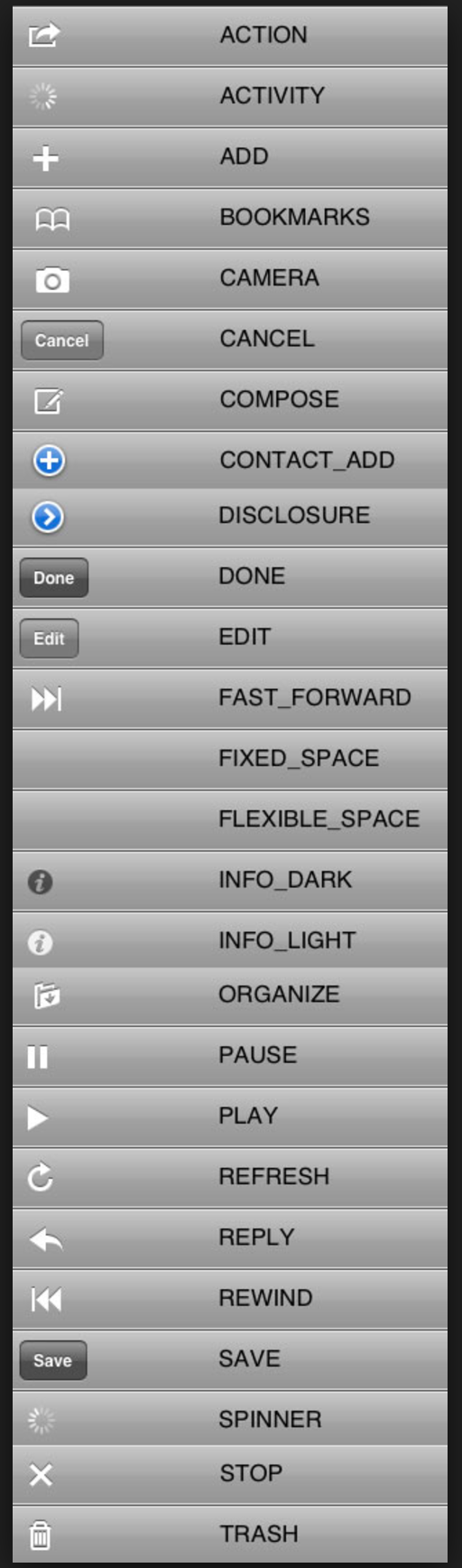
Extends: Titanium.Proxy · Since: 5.4.0, 5.4.0, 9.2.0 · Platforms: iphone, ipad, macos
Properties #
ACTION#
Type: Number
Use with Button.systemButton to specify an Action button.
The resulting button can only be used in navigation bars and toolbars.
ACTIVITY#
Type: Number
Use with Button.systemButton to create an activity indicator that
can be used in navigation bars and toolbars.
When visible, the activity indicator is already started.
ADD#
Type: Number
Use with Button.systemButton to specify an Add button.
The resulting button can only be used in navigation bars and toolbars.
apiName#
Type: String
The name of the API that this proxy corresponds to.
The value of this property is the fully qualified name of the API. For example, Button
returns Ti.UI.Button.
BOOKMARKS#
Type: Number
Use with Button.systemButton to specify a Bookmarks button.
The resulting button can only be used in navigation bars and toolbars.
bubbleParent#
Type: Boolean
Indicates if the proxy will bubble an event to its parent.
Some proxies (most commonly views) have a relationship to other proxies, often
established by the add() method. For example, for a button added to a window, a
click event on the button would bubble up to the window. Other common parents are
table sections to their rows, table views to their sections, and scrollable views
to their views. Set this property to false to disable the bubbling to the proxy's parent.
CAMERA#
Type: Number
Use with Button.systemButton to specify a Camera button.
The resulting button can only be used in navigation bars and toolbars.
CANCEL#
Type: Number
Use with Button.systemButton to specify a Cancel button.
This button is displayed as a bordered button with localized text.
The resulting button can only be used in navigation bars and toolbars.
COMPOSE#
Type: Number
Use with Button.systemButton to specify a Compose button.
The resulting button can only be used in navigation bars and toolbars.
CONTACT_ADD#
Type: Number
Use with Button.style to specify a ContactAdd button.
The resulting button is not restricted to use in navigation bars and toolbars.
DISCLOSURE#
Type: Number
Use with Button.style to specify a Disclosure button.
The resulting button is not restricted to use in navigation bars and toolbars.
DONE#
Type: Number
Use with Button.systemButton to specify a Done button.
This button is displayed as a bordered button with localized text.
The resulting button can only be used in navigation bars and toolbars.
EDIT#
Type: Number
Use with Button.systemButton to specify an Edit button.
This button is displayed as a bordered button with localized text.
The resulting button can only be used in navigation bars and toolbars.
FAST_FORWARD#
Type: Number
Use with Button.systemButton to specify a Fast Forward button.
The resulting button can only be used in navigation bars and toolbars.
FIXED_SPACE#
Type: Number
Use with Button.systemButton to create a fixed-width blank space
for spacing items in toolbars.
Only the width property is used when this value is set.
FLEXIBLE_SPACE#
Type: Number
Use with Button.systemButton to create a flexible blank space
for spacing items in toolbars.
The space is distributed equally between the other
items. Other item properties are ignored when this value is set.
INFO_DARK#
Type: Number
Use with Button.style to specify a dark-colored Info button.
The resulting button is not restricted to use in navigation bars and toolbars.
INFO_LIGHT#
Type: Number
Use with Button.style to specify a light-colored Info button.
The resulting button is not restricted to use in navigation bars and toolbars.
lifecycleContainer#
Type: Titanium.UI.Window, Titanium.UI.TabGroup
The Window or TabGroup whose Activity lifecycle should be triggered on the proxy.
If this property is set to a Window or TabGroup, then the corresponding Activity lifecycle event callbacks
will also be called on the proxy. Proxies that require the activity lifecycle will need this property set
to the appropriate containing Window or TabGroup.
ORGANIZE#
Type: Number
Use with Button.systemButton to specify an Organize button.
The resulting button can only be used in navigation bars and toolbars.
PAUSE#
Type: Number
Use with Button.systemButton to specify a Pause button.
The resulting button can only be used in navigation bars and toolbars.
PLAY#
Type: Number
Use with Button.systemButton to specify a Play button.
The resulting button can only be used in navigation bars and toolbars.
REFRESH#
Type: Number
Use with Button.systemButton to specify a Refresh button.
The resulting button can only be used in navigation bars and toolbars.
REPLY#
Type: Number
Use with Button.systemButton to specify a Reply button.
The resulting button can only be used in navigation bars and toolbars.
REWIND#
Type: Number
Use with Button.systemButton to specify a Rewind button.
The resulting button can only be used in navigation bars and toolbars.
SAVE#
Type: Number
Use with Button.systemButton to specify a Save button.
This button is displayed as a bordered button with localized text.
The resulting button can only be used in navigation bars and toolbars.
STOP#
Type: Number
Use with Button.systemButton to specify a Stop button.
The resulting button can only be used in navigation bars and toolbars.
TRASH#
Type: Number
Use with Button.systemButton to specify a Trash button.
The resulting button can only be used in navigation bars and toolbars.
Methods #
addEventListener #
Adds the specified callback as an event listener for the named event.
| Name | Type | Summary | Optional |
|---|---|---|---|
name | String | Name of the event. | No |
callback | Callback<Titanium.Event> | Callback function to invoke when the event is fired. | No |
applyProperties #
Applies the properties to the proxy.
Properties are supplied as a dictionary. Each key-value pair in the object is applied to the proxy such that
myproxy[key] = value.
| Name | Type | Summary | Optional |
|---|---|---|---|
props | Dictionary | A dictionary of properties to apply. | No |
fireEvent #
Fires a synthesized event to any registered listeners.
| Name | Type | Summary | Optional |
|---|---|---|---|
name | String | Name of the event. | No |
event | Dictionary | A dictionary of keys and values to add to the Titanium.Event object sent to the listeners. | Yes |
removeEventListener #
Removes the specified callback as an event listener for the named event.
Multiple listeners can be registered for the same event, so the
callback parameter is used to determine which listener to remove.
When adding a listener, you must save a reference to the callback function
in order to remove the listener later:
var listener = function() { Ti.API.info("Event listener called."); }
window.addEventListener('click', listener);
To remove the listener, pass in a reference to the callback function:
window.removeEventListener('click', listener);
| Name | Type | Summary | Optional |
|---|---|---|---|
name | String | Name of the event. | No |
callback | Callback<Titanium.Event> | Callback function to remove. Must be the same function passed to addEventListener. | No |